Find anything
Library shows every asset in the workspace. Search by prompt, script or file name, and filter by uploaded or generated, video or photo, product shots and aspect ratio. Make folders to keep campaigns apart.
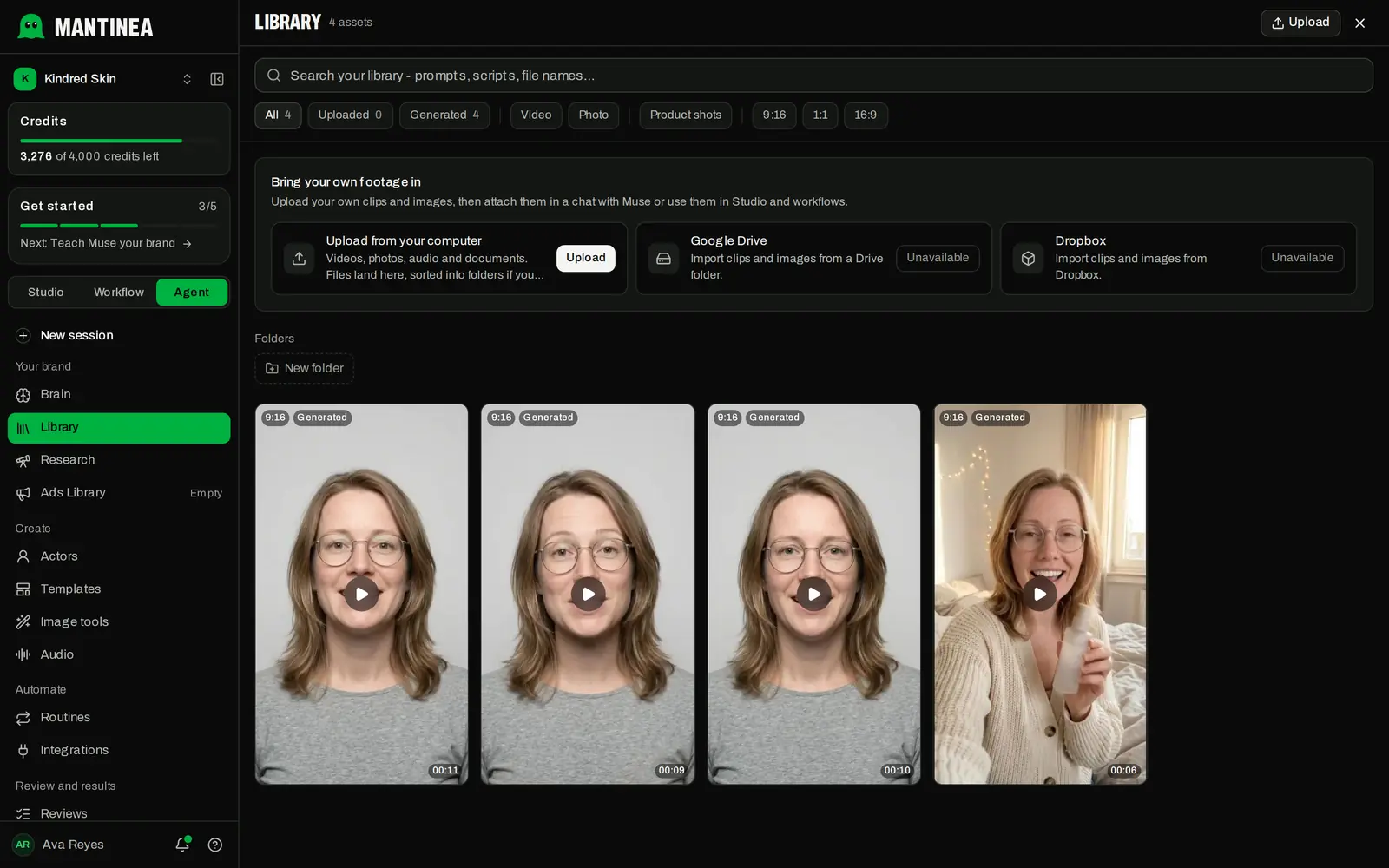
Bring your own footage
Upload videos, photos, audio and documents from your computer, or import from Google Drive or Dropbox once they are connected in Integrations.
The video page
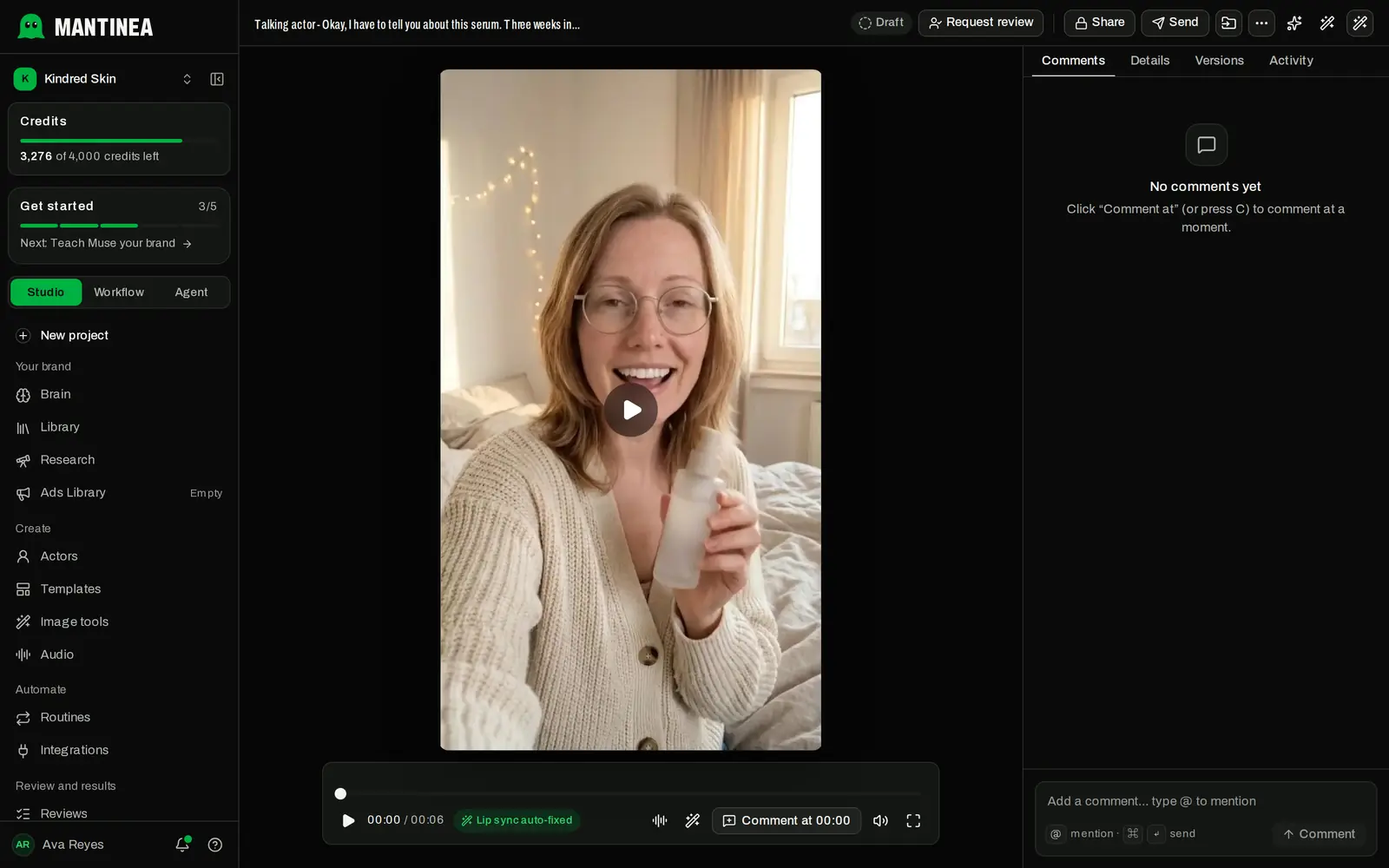
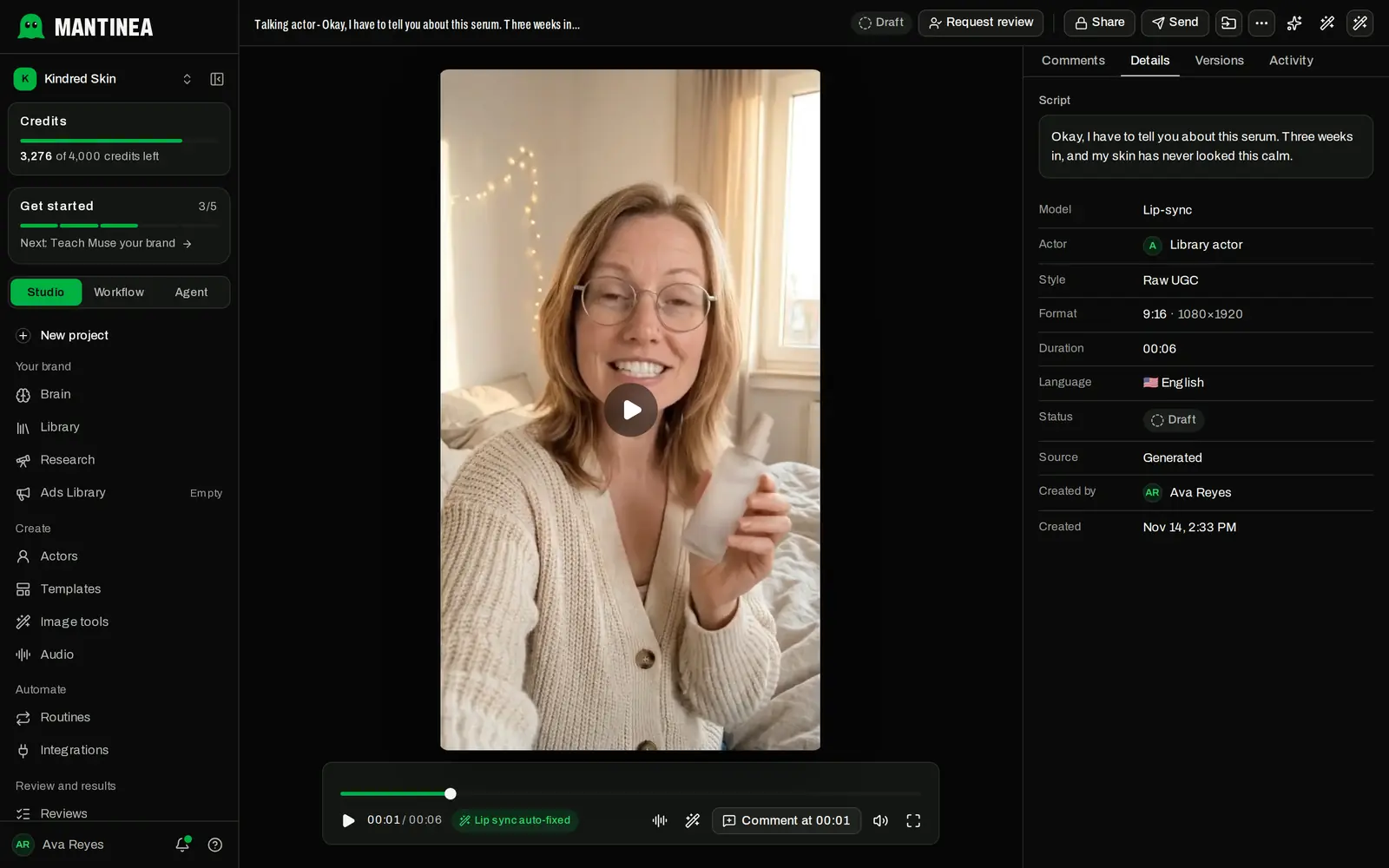
Click any asset to open its page: the player on the left, and on the right Comments, Details (script, model, actor, format, credits), Versions (variations, translations and fixes made from it) and Activity.
What you can do from here
- Request review and Share (see Reviews and sharing).
- Send a copy to Google Drive or Dropbox, or post to TikTok or X after approval.
- The ⋯ menu: Download, Add to chat, Variations and Translate.
- Edit, Finish and the video tools (see Edit and finish a video).
Lip sync check
Talking videos are checked for lip sync. The badge under the player reads Lip sync verified, Lip sync auto-fixed, Check lip sync at 0:12 or Lip sync failed. If a check finds a problem, downloading or sharing asks you first and offers a fix.
Spotted a problem yourself? The waveform button in the player reports it in two questions.
Pictures show the English interface. Names of buttons may read differently in your language.